
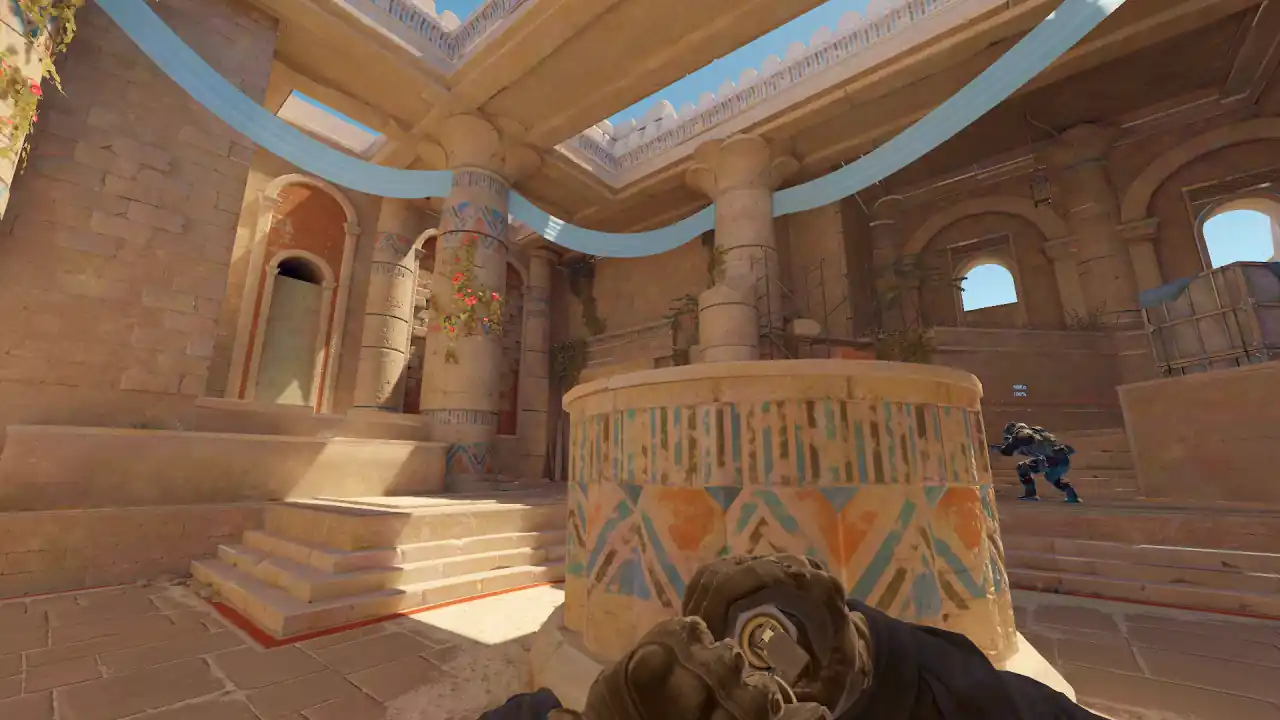
CS2 demo controls: demoui, binds, POV and free cam
No Valve page we could fetch names a default demo key, so this page prints none. Start the file with playdemo, then type demoui in the console for the playback panel with its scrub bar and speed control.
demo_togglepause pauses, demo_timescale sets speed, demo_gototick jumps to an exact tick and spec_mode switches between first person and other views. Bind the ones you use to keys.
How do you control demo playback in CS2?
From the developer console, or from the panel that demoui opens. Turn the console on in the game settings first. The descriptions below are the game's own help text, from a cvarlist dump.
| Command | What the game says it does |
|---|---|
playdemo | Play a recorded demo file (.dem) |
demoui | Show/hide demo playback ui |
demo_togglepause | Toggles demo playback. demo_pause and demo_resume go one way |
demo_gototick | Skips to a tick in demo |
demo_marktick / demo_gotomark | Mark the current tick, then skip back to it |
demo_timescale | Sets demo replay speed: below 1 is slower, above 1 faster |
demo_step_tick | Play for N ticks (default 1) and then pause |
demo_ui_mode | 0 = disabled, 1 = minimal, 2 = full. Ships at 2 |
A tick number is an exact address for a moment, so you can come back to the same frame next week. There is no round-skip command: rounds are reached by tick or by dragging the scrub bar. The CS2 demo commands page lists every command and setting.
How do you bind a key to a CS2 demo command?
Use the console binding form: the word bind, then the key, then the command in quotation marks. Binding a key to demoui gives the playback panel a key of its own, and binding one to demo_togglepause gives pause without opening the console.
For example: bind <key> "demo_togglepause", with the key of your choice. Three binds cover most review: the panel, pause and a one-tick step.
demoui. No first-party Valve statement of one could be fetched, and a shortcut from memory is not a fact. Bind it yourself and you know what it is.How do you watch a CS2 demo in first person or free cam?
Demo playback reuses the spectator system, so the camera controls are the spec_ commands, not the demo_ ones. spec_mode switches between first person and the other views, and spec_player picks the player.
| Command | What the game says it does |
|---|---|
spec_mode | Set spectator mode |
spec_player | Spectate a player by name or slot |
spec_next / spec_prev | Spectate next or previous player |
spec_goto | Move the camera to x y z pitch yaw |
spec_show_xray | If 1, player outlines show through walls |
Valve's release notes back this up. On 15 February 2024: "spec_player and spec_goto now works in CSTV and demo playback". On 25 April 2024 camera movement was decoupled from playback speed, "allows moving the camera even if playback is paused".
What are the keys in a browser CS2 demo viewer?
A browser viewer has already read the demo, so rounds, kills and grenades are one key away. These are Memorin's defaults, all changeable in Settings ▸ Controls.
| Key | Action |
|---|---|
| Space | Play or pause. In the 2D view, use Shift+Space: there Space clears your drawings |
| Left / Right | Seek by 1, 5, 10 or 30 seconds, as set in the dock |
| Shift + Left / Right | Previous or next round |
| J / L | Back or forward 10 seconds |
| , / . | One frame back or forward |
| − / = | Slower or faster |
| Q / E | Previous or next event; with Shift, deaths only |
| [ / ] | Previous or next kill by the followed player |
| F · V · C | Cycle camera · player POV · free camera |
| 1–0 | Pick a player |
| G | Follow a grenade |
| R · Tab · T | Review panel · scoreboard · tactical map |
| X · M · N | X-ray · radar · grenade trails |
| H · O · Z | Hide HUD · 2D radar view · skip freeze time |
Player POV is rebuilt from the recorded aim angles, not captured from the player's screen, so it has none of their HUD settings. It does draw their real crosshair.
Can I walk the map from a demo?
Yes, in the browser viewer's 3D view (PRO on your own and pro matches). Press B and you drop into the map at player height: WASD to move, Space to jump, Ctrl to crouch, Esc to leave. A free camera floats; walking shows the angle a standing player really had.
Watch a real round, take over and play it. Today's moment is free in 3D, with no account.
Play daily
FAQ
How do you control demo playback in CS2?
Start the file with playdemo, then run demoui, which the game calls show or hide demo playback ui: the panel with the scrub bar and speed control. From the console, demo_pause, demo_resume and demo_togglepause do the same job, and demo_ui_mode picks the panel, where 0 is disabled, 1 is minimal and 2 is full.
How do you bind a key to a CS2 demo command?
Use the console binding form: the word bind, then the key, then the command in quotation marks. Binding a key to demoui gives the playback panel a key of its own, and binding one to demo_togglepause gives pause without opening the console.
How do you watch a CS2 demo in first person?
Demo playback reuses the spectator system, so the camera controls are the spec_ commands, not the demo_ ones. spec_mode switches between first person and the other views, and spec_player picks the player.
Can you use free cam in a CS2 demo?
Yes. Switch the view with spec_mode, and spec_goto moves the camera to an exact position and angle. Since April 2024 the camera can move even while playback is paused.
How do you slow down or step through a CS2 demo?
demo_timescale sets demo replay speed: below 1 is slower than real time, above 1 is faster. For frame by frame inspection, demo_step_tick plays for a number of ticks and then pauses, defaulting to a single tick.
What are the keyboard shortcuts in a browser CS2 demo viewer?
In Memorin, Space plays or pauses (in the 2D view Shift+Space does, and Space clears your drawings), the arrow keys seek, and Shift with a left or right arrow changes round. Q and E step between events, and Shift with them between deaths. In the 3D view (PRO), F cycles the camera, V is player POV, C is free camera, X is x-ray and B walks the map yourself. All of them are rebindable in Settings.
Sources: command descriptions from the game's own cvarlist; Counter-Strike 2 release notes of 15 February and 25 April 2024, read from Valve's Steam announcement feed on 27 September 2026. Browser keys are Memorin's shipped defaults.