
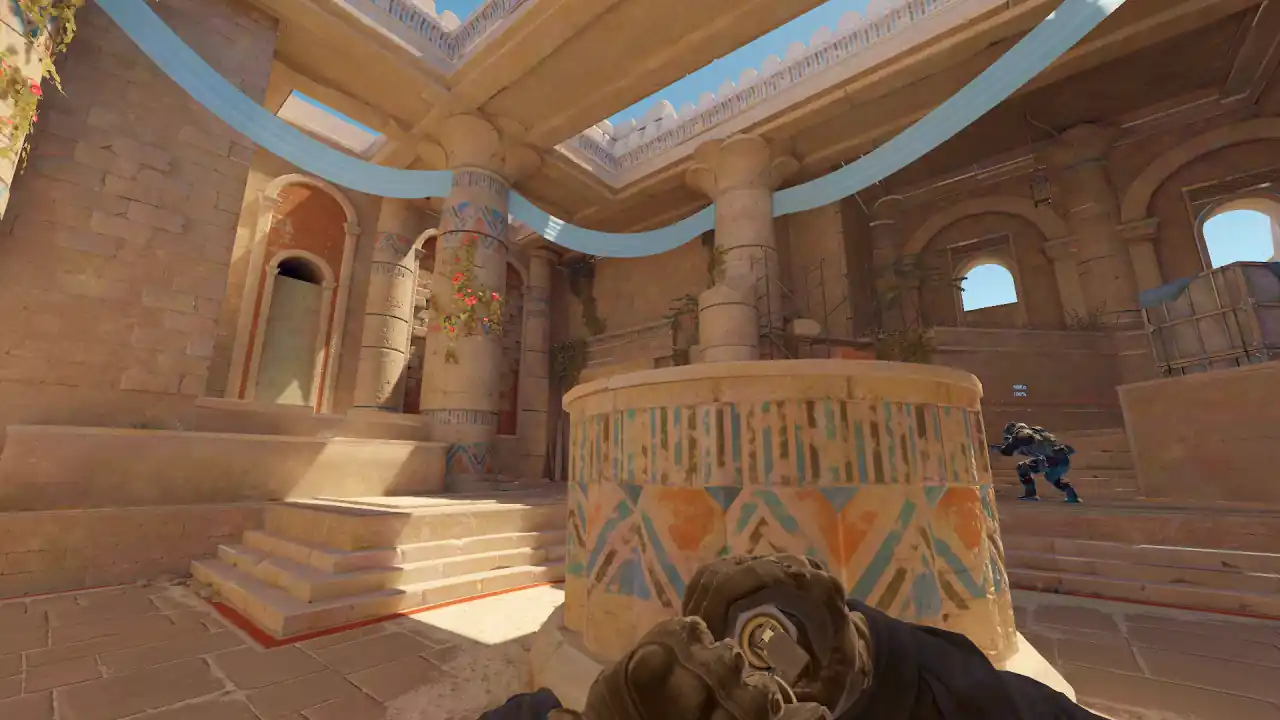
CS2 demo highlights: find your best rounds and share them
In CS2, open the demo and switch playback to highlight mode, which shows only the kills and deaths of the player you are watching. The timeline also marks each kill and death.
In a browser viewer like Memorin, clutches and multikills are already listed per round, so you click one instead of scrubbing. Share your own match as a clean screenshot or, with PRO, as a challenge a friend can play. A replay link reopens the exact view, and others can open it only on public matches.
How do I watch highlights of a CS2 demo in the game?
Use highlight mode. Valve's release notes for 23 May 2024 say demo playback "can be toggled into 'highlight mode' which will show only kills and deaths for the active player", and that the timeline shows "indicators for kill and death events".
How much of each moment you see is set by three console settings. Their shipped defaults, from the game's own command list:
| Setting | Default | What it does |
|---|---|---|
demo_highlight_seconds_before | 6 | Seconds shown before each highlight |
demo_highlight_seconds_after | 2 | Seconds shown after it |
demo_highlight_fade_duration | 0.25 | Length of each fade in and fade out |
The full list is on the CS2 demo commands page.
How do I find my best rounds in a CS2 demo?
Open the Rounds tab of the match review panel. Multikills and clutches are already detected per round, so the highlights are listed rather than hunted for, and each card jumps straight to that round.
Each round card shows the result, both teams' buy and money, the opening duel, the bomb site, any multikill or clutch, and how much utility was thrown. In 3D (PRO), buttons on the card open the round in follow camera, in either duelist's POV, or from above.
While the replay runs, Q and E step between events, and Shift+Q / Shift+E step between deaths only. That is the fastest way to scan a match. The controls page lists every key.
Watch a real round, take over and play it. Today's moment is free in 3D, with no account.
Play daily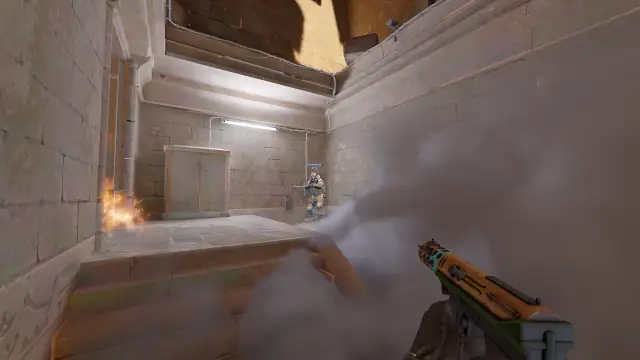
How do I find one specific play?
Use the Events tab. It is a searchable log of kills, bomb events, utility, reloads, damage and round starts. Each entry has its round and time, and clicking it jumps the replay there.
- Type a weapon name to find every AWP kill.
- Type wallbang, noscope, smoke or headshot. Kills are tagged with these when the demo records them.
- Type a player's name, then filter to kills.
- Type clutch or MVP to jump between deciding rounds.
How do I frame a CS2 highlight?
POV, free and follow cameras and x-ray are in the 3D view (PRO).
- POV for aim and reactions. It is rebuilt from the recorded aim angles, not captured from the player's monitor.
- Free camera to show what the player could not see: the flank, the second angle.
- Follow camera for movement and rotations. It is the easiest view for someone who was not in the match.
Two toggles help: X turns on x-ray so players show through walls, and H hides the interface for a clean picture.
Can I export a CS2 demo as a video file?
Not in Memorin. There is no video recording or export here. You can copy a link that reopens the exact view (others can open it only on public matches), save a screenshot without the interface, or, with PRO, share the situation from your own match as a playable challenge link.
If you need a video file, record your screen while the replay plays. CS Demo Manager, a separate tool, says on its own site that it can "Generate videos from demos" (checked 27 September 2026).
FAQ
How do I watch highlights of a CS2 demo in the game?
Switch demo playback to highlight mode, which Valve describes as showing only kills and deaths for the active player. The timeline also marks each kill and death. demo_highlight_seconds_before, 6 by default, sets how much lead-up you see.
How do I find my best rounds in a CS2 demo?
Open the Rounds tab of the match review panel. Multikills and clutches are already detected per round, so the highlights are listed rather than hunted for, and each card jumps straight to that round.
How do I share a moment from a CS2 demo?
Use the copy replay link control while the moment is on screen. The link reopens the demo at that point, for anyone who can open that demo. A public match opens for everyone. Your own uploads and imports are private, so the link returns a 404 for anyone else: send a screenshot or, with PRO, a challenge link instead.
Can I export a CS2 demo as a video file?
Not in Memorin. There is no video recording or export here. You can copy a link that reopens the exact view (others can open it only on public matches), save a screenshot without the interface, or, with PRO, share the situation from your own match as a playable challenge link.
What is a challenge link?
A challenge link shares a situation to play rather than watch. Anyone who opens it, with or without an account, takes over the moment and is graded S to D. Opening one is free; creating one from your own match is a PRO feature.
Sources: Counter-Strike 2 release notes of 23 May 2024, read from Valve's Steam announcement feed on 27 September 2026; the three highlight settings and their defaults from the game's own cvarlist, as published on the commands page.